Creating/Editing Registration Questions
CharterAce's student registration system allows you to set up multiple types of data fields to manage information about people in the system. There are three different types of people in the system: Students, Parents, and Other. Each of those types of people have unique sets of data fields that can be set up. In addition, you can set up general data fields or internal data fields. General data fields are fields that the parents will see when they register their students. The internal data fields will not be visible by parents, and is used to keep track of information internally at the school.
When you click on the button you will receive a list of the current data fields set up in the system
If you scroll to the bottom of the list, you will see two additional buttons, the plus symbol will allow you to add a new question, where the list button with the downward arrow will allow you to Sort the list.
Edit Question | Delete Question | Add New Question | Sort Questions |
- Title: you enter is what the label is for the data field.
- Description: is for internal purposes only, the information is not shared outside of the setup field.
- Type of Data: This drop down allows you to select what type of data this (i.e. text, paragraph, telephone number, date, etc.
- Options List: select which list of options you want to use to use for the parents to choose from. If you would like to set up a new list of options, click the "Edit Lists" link above the drop down. You can set up lists based on your needs (i.e. Options for How did you hear about us, or which tract for school-within-a-school option you may have available, etc.).
This encompasses the majority of what you would need to do to setup a question, but there are further options explained below if you wish to tweak the use of the question.
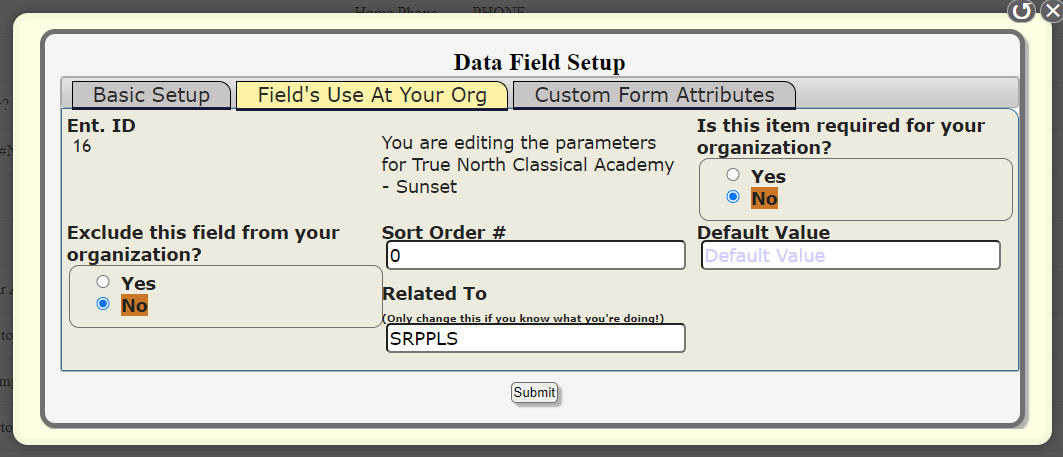 Fields Use At Your Org
The options within this tab allow you to customize how the question is used at your organization. The options are as listed below:
- Is this item required for your organization? If you would like to make this a required field, set this to yes. It means the form can not be submitted without a response to the question.
- Sort Order #: If you want to manually change the order of this item as it is listed with other data fields (Note it is easier to use the Sort Questions options from the question list than to use this option).
- Default Value: If you would like to set a default value that will be put into the response before the user fills it in, you can enter it here. For example, you may want to put "FL" in the state field, or the district your school is located within for which county the family lives in.
- Exclude this field from your organization? If it is a deafault system question (i.e. address, state) that you would rather not be displayed, you can set this to true and it will remove the question.
- Related To: This is how the system knows which type of a question this is. SRPPL means it applies to all people in the system. SRPPLS means it applies to students in the system. SRPPLSI means that it is an internal question that applies to students in the system. The same logic applies to the two other types of people: SRPPLP (General Parents), SRPPLPI (Internal Parent), SRPPLO (General Others), and SRPPLOI (Internal Other).
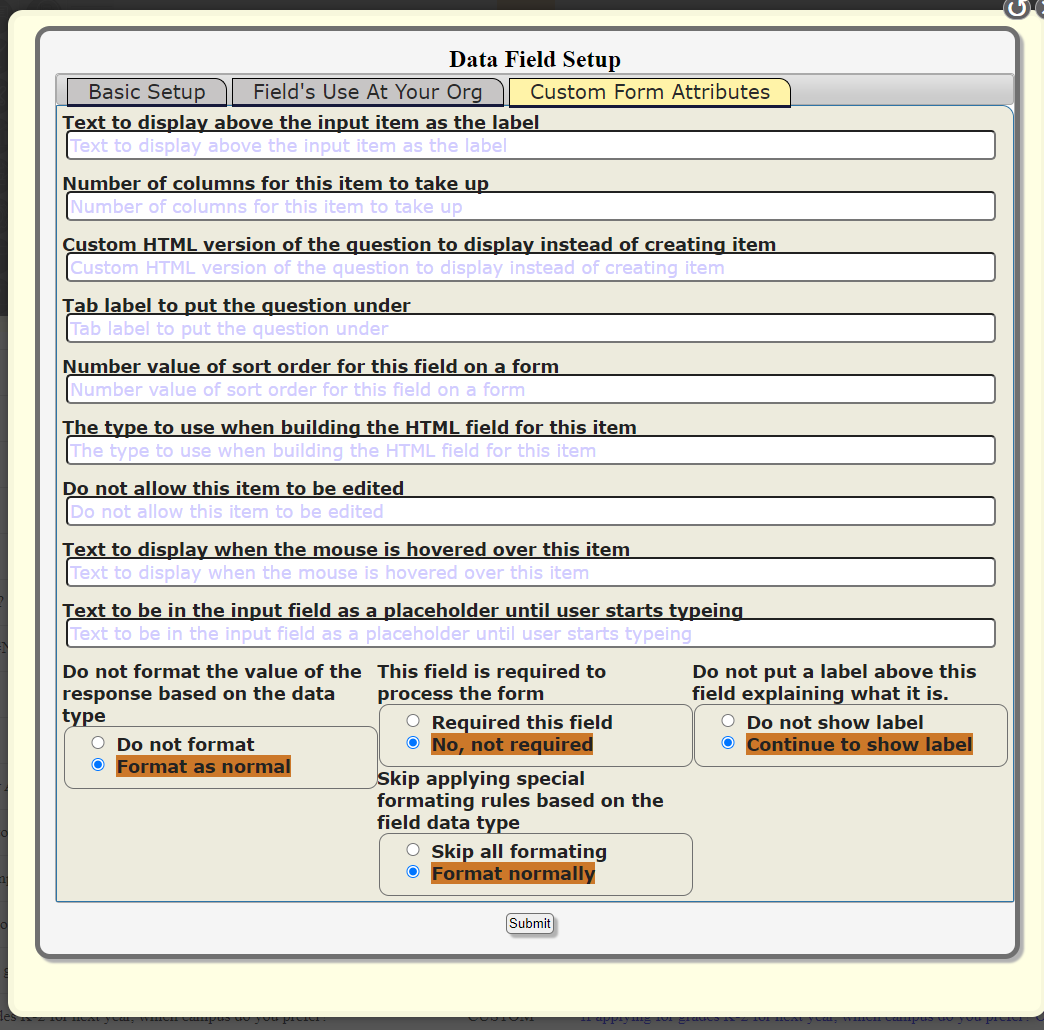 Custom Form Attributes
The options in this tab are a bit more finicky and may require more technical expertise to get set correctly. If you need help with setting these up, please contact Curtis Fuller.
- Text to display above the input item as the label - By default the Title is shown, but if you would like to change the text displayed to the user you can type it here.
- Number of columns for this item to take up - By default a question only takes on column. But if you would like it to be wider, you can change the number of columns by entering a number here (i.e. if you want the address field to be longer and take three columns, for example).
- Custom HTML version of the question to display instead of creating item - The system will auto generate an HTML version of the question, but if you would like to use your own HTML version for the question you can enter the <input > HTML tag here.
- Tab label to put the question under - If you have a form with multiple tabs (like the one that is used on this screen), you can enter the text on the tab that you would like it to be under here.
- Number value of sort order for this field on a form - The sort order for this question (it will be overridden by the sort order number on the previous tab however).
- The type to use when building the HTML field for this item - There are various pre-programmed data types allowed in the system. You can enter those types here to automatically format the field. It is easier, however, to use the "Type of Data" field on the "Basic Setup" tab to do this.
- Do not allow this item to be edited - If you want this to be a read only field that can not be editied, change this to a true value (-1).
- Text to display when the mouse is hovered over this item - Will put a "info" icon next to the question that when hovered over will display additional information.
- Text to be in the input field as a placeholder until user starts typing - By default the label is also used as the placeholder in a field. (It is the light gray text shown in the input before the user starts typing). You can change the text displayed by entering it here.
- Do not format the value of the response based on the data type - This will prevent the system from formatting the input when it creates it.
- This field is required to process the form - Whether or not to require the field (FYI, this will be overridden by the Required form in the "Field's Use At Your Org" tab).
- Skip applying special formating rules based on the field data type - This will prevent the system from using the specifal formatting rules based on the type of data entered into the "type to use when building the HTML" field above.
- Do not put a label above this field explaining what it is - This turns off the label for the question.
Related Articles
Lottery
The Student Registration system allows you to run your lottery automatically, and provides documentation to show that the lottery was done equitably and that all students had an equal chance of being selected for the school. We recommend you run the ...Merge Students
The Student Registration System has a tool built in that will help you find duplicate students and individuals and merge their accounts together. This is helpful if you have families who submit multiple applications for students hoping to circumvent ...Custom Search
The student registration system allows you to build custom searches based on your own criteria, and to define which fields you would like shown on the search. Many features of the system use these custom searches to operate, such as the student ...Adding New Users
Adding New Users To A CharterAce Go to the list of current users for the entity. Settings Organizational Users If User Is Already In The System If the user is already a user in the system, at a school that you have access to, you can select to add ...Setting Up Bill.Com Access
In order to use the basic features of CharterAce, it is not necessary to have a Bill.Com account. Only users who need to interact with sensitive data or send payments need to have an actual Bill.Com account. Please be aware, that there may be an ...